

Register a ConnectedCooking account, check that your cooking system runs the minimum required software, connect it to your network by LAN or WLAN, then add the device to your account. Once the device shows as online, enable HACCP data capture and automatic updates. If the unit is running old firmware, update it first using an original RATIONAL USB stick, because registration will fail on outdated software.
TL;DR:
- Ensuring firewalls allow ports 443 and 8883 is crucial, as blocking port 8883 is the most common reason connected units appear offline.
- Firmware must be updated to minimum versions before registration, requiring an original RATIONAL USB stick if the software is outdated.
- Model-specific setup varies: iCombi Pro has built-in LAN/WLAN, while older SelfCookingCenter and VarioCookingCenter units may need adapters and firmware updates.
- Confirm network details and firewall rules with IT before installation to prevent delays caused by misconfigurations or missing access.
- Conduct a pilot installation to verify processes and settings before rolling out to multiple sites, especially for complex network environments.
Table of Contents
- Pre-flight checklist before you start the ConnectedCooking setup
- How do you connect a RATIONAL cooking system to ConnectedCooking?
- Setup notes for iCombi Pro, iVario Pro, SelfCookingCenter and VarioCookingCenter
- What network and firewall settings does ConnectedCooking need?
- How do you fix a RATIONAL cooking system that won’t stay online?
- What does connecting to ConnectedCooking actually change day to day?
- Who can help with RATIONAL installations and procurement?
- A practical view on rolling this out across multiple sites
- Get help sourcing and installing your RATIONAL equipment
- Sources
- FAQ
Pre-flight checklist before you start the ConnectedCooking setup
A Rational ConnectedCooking setup goes faster when the paperwork and network details are sorted before anyone touches the control panel. Most delays technicians report come down to missing account access or a network detail nobody wrote down.
Get these together first:
- Account information: an admin email address, the site name, and a contact phone number for the ConnectedCooking account holder.
- USB stick: an original RATIONAL USB stick, needed only if a unit turns out to be running firmware older than the minimum version.
- Network details: the SSID, Wi-Fi password, any VLAN segment the kitchen network uses, and whether the site runs DHCP or a static IP plan.
- A working device: a laptop or tablet with an up-to-date browser, since ConnectedCooking runs entirely in the cloud with no local software to install.
- Service partner contact: useful to have on hand if the install needs a Wi-Fi adapter fitted or any other on-site hardware work.
Run through this order on-site:
- Confirm who holds (or will hold) the ConnectedCooking account for the site.
- Note the exact model and production date of each cooking system going online.
- Check the current software version on each unit’s control panel.
- Confirm network credentials with whoever manages the kitchen’s Wi-Fi or LAN.
- Decide whether IT needs to open firewall ports before the visit or whether that’s already been actioned.
Skipping step three is the most common reason installers end up making a second visit. If nobody has checked the software version in advance, there’s a fair chance at least one older SelfCookingCenter or iCombi Pro unit needs a manual update before it will register at all. Sorting that upfront, rather than discovering it mid-install, is the difference between a 30-minute job and a return trip.
How do you connect a RATIONAL cooking system to ConnectedCooking?
The full Rational ConnectedCooking setup breaks into four stages: register, verify software, connect the network, then add the device. Each stage has a quick check attached so you’re not guessing whether it worked.
1. Register your ConnectedCooking account
Go to the ConnectedCooking web portal or download the app, then create an account using the site’s admin email. RATIONAL’s own first-steps guidance walks through registration, connecting the cooking system, and adding it to your account, followed by enabling the benefits such as remote control and HACCP data.
You’ll need to verify the account by email before you can add any device. Do this before you go anywhere near the oven, because chasing a verification link on-site while a kitchen queue backs up behind you is not how anyone wants to spend a Tuesday morning.
2. Check the installed software version
Every RATIONAL cooking system shows its software version somewhere in the settings menu, usually under system information or service details. Write this number down exactly as displayed.
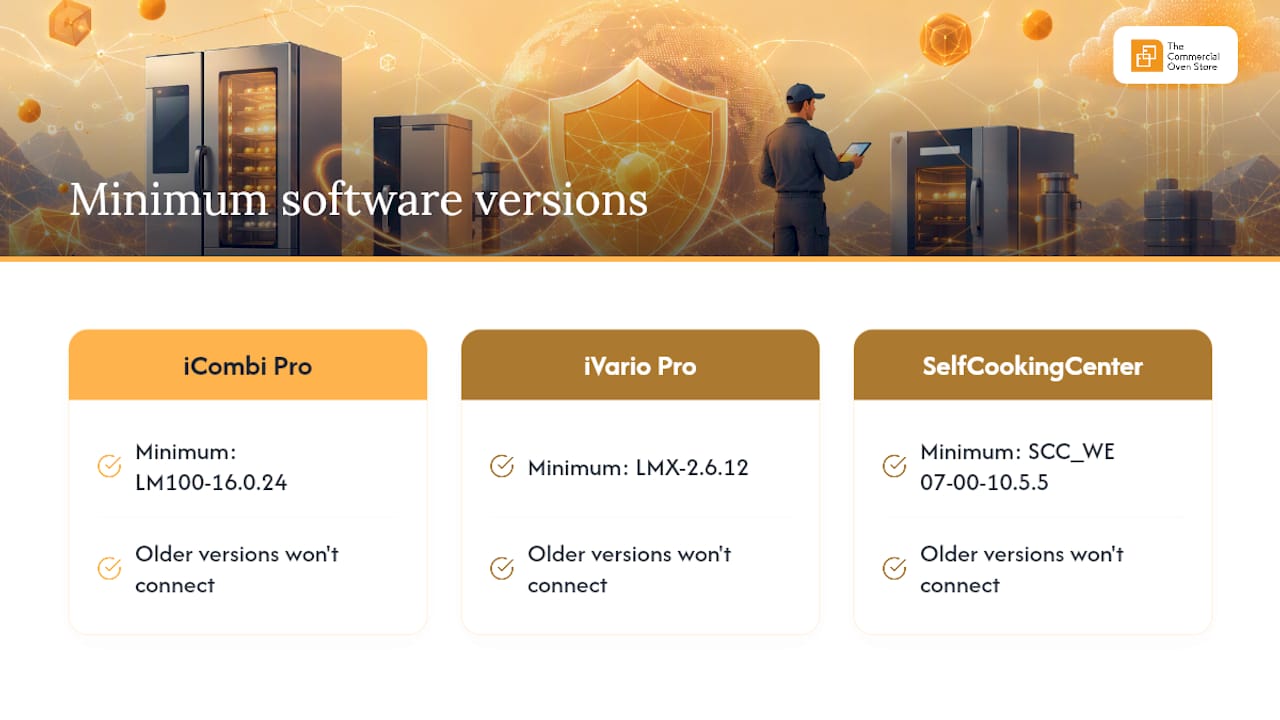
ConnectedCooking has firm minimums: iCombi Pro needs LM100-16.0.24 or newer, iVario Pro needs LMX-2.6.12 or newer, and SelfCookingCenter needs SCC_WE 07-00-10.5.5 or newer, according to RATIONAL’s own FAQ. Anything older simply won’t connect. That’s not a network fault, and no amount of retyping the Wi-Fi password will fix it.
Pro Tip: Photograph the software version screen on every unit before you leave site, even the ones that connect fine on the first try. It saves a call back to the kitchen a week later when someone asks which firmware version unit three is running.
3. Update firmware if required
If a unit is below the minimum, you’ll need an original RATIONAL USB stick loaded with the correct firmware. The RATIONAL technical manual sets out the exact button sequence for starting the update, and it matters: an interrupted update can leave the unit stuck in a recovery state that then needs a service visit to fix.
Schedule updates for a quiet window, never mid-service. A firmware flash typically takes several minutes, and pulling power or losing the USB connection partway through is the single most preventable cause of an unplanned engineer callout.
4. Run the Network Wizard
On the control panel, go to Settings, then Network Settings, then start the Network Wizard. This is where you choose LAN or WLAN and enter the relevant credentials.
For LAN, plug in the Ethernet cable and the wizard usually picks up a DHCP address automatically. For WLAN, select the site’s SSID from the list and enter the password. If the network uses a hidden SSID or a captive portal, LAN is the more reliable fallback, and it’s the connection type RATIONAL recommends for production kitchens generally.
Once the wizard completes, the control panel should display a connected status, though this only confirms local network access, not that ConnectedCooking itself can see the device yet.
5. Add the device to ConnectedCooking
Back in the ConnectedCooking account (web or app), select “add device” and follow the prompts to pair the cooking system, usually by entering a serial number or scanning a code shown on the unit’s display. Because ConnectedCooking is a cloud service accessed through a browser or app, there’s nothing to install on the PC or tablet doing the pairing.
Once added, switch on HACCP data downloads and automatic software updates in the device settings. These aren’t enabled by default, so it’s worth doing this in the same session rather than assuming they’re already active.
6. Verify the connection
Check the ConnectedCooking dashboard: the device should show as “online” within a few minutes of being added. If it still shows offline after ten minutes, the fault is almost always network related rather than account related, and the troubleshooting section below covers exactly where to look.
Setup notes for iCombi Pro, iVario Pro, SelfCookingCenter and VarioCookingCenter
Not every RATIONAL unit connects the same way, and the model in front of you dictates whether you’re doing a five-minute Wi-Fi pairing or ordering a part first.
- iCombi Pro: LAN and WLAN come as standard on every unit, so there’s no adapter to buy. Run the Network Wizard, pick WLAN if that’s the site standard, and fall back to a wired Ethernet connection if the signal is patchy near the pass. Anyone considering a 6 GN1/1 iCombi Pro or the larger 10 GN1/1 model gets this connectivity built in from the factory.
- iVario Pro: check the software version and serial number on the main control panel under system information before doing anything else. iVario Pro needs LMX-2.6.12 or newer to register with ConnectedCooking; below that, plan for a firmware update first.
- SelfCookingCenter: units built from March 2017 onward have LAN as standard. Earlier units may need a Wi-Fi adapter (article number 60.76.714) fitted as an accessory if wired connection isn’t practical in that kitchen.
- VarioCookingCenter: the same logic applies from July 2017 onward, with LAN standard on units from that production date and a Wi-Fi adapter available to order for sites that can’t run a cable to the appliance.
Production date matters more than most installers expect. Two SelfCookingCenter units sitting side by side in the same kitchen, bought a year apart, can need completely different setup paths, one straight into LAN, the other waiting on an adapter or a firmware stick. Always check the data plate rather than assuming based on how the unit looks.
If a unit predates the standard networking hardware for its model line, budget for a manual firmware update before registration, and factor in a possible service partner visit if a physical adapter needs fitting rather than just configuring.
What network and firewall settings does ConnectedCooking need?
IT teams need to open exactly two things: port 443 for web traffic and TCP/UDP port 8883 for device communication. Nothing more, nothing broader.
-
Port 443 (HTTPS): allow access to
*.connectedcooking.comfor both the web portal and device-to-cloud communication. - Port 8883 (TCP/UDP): this is the one firewalls block most often, and it’s frequently the actual cause when a device sits stubbornly offline despite a perfectly good internet connection, according to RATIONAL’s own guidance.
- DHCP vs static IP: DHCP is fine for most single-site kitchens. Multi-site operations or anywhere running network segmentation should consider a static IP for each cooking system, so IT can track and firewall devices individually rather than chasing a moving DHCP lease.
- Browser compatibility: Chrome, Firefox, and Microsoft Edge are all supported for the web portal, and no local software installation is required on the managing PC or tablet.
Firewall misconfiguration, not weak Wi-Fi, is the single most common reason a RATIONAL unit shows as offline in ConnectedCooking. Installers who assume it’s a signal strength problem often spend an hour repositioning a router when the actual fix is a two-minute change to a firewall rule blocking port 8883.
Ask your IT provider to whitelist these specifically rather than opening a broader range. It’s a smaller ask, easier to get approved quickly, and it’s exactly what RATIONAL’s own network documentation specifies.
How do you fix a RATIONAL cooking system that won’t stay online?
Most connection problems trace back to one of four causes, and working through them in order saves time versus guessing.
- Device shows offline: restart the unit, check the Ethernet cable is seated properly, confirm firewall ports 443 and 8883 are both open, and check Wi-Fi signal strength if the unit is on WLAN rather than LAN.
- Registration fails outright: this is almost always a software version issue. Update the firmware using an original RATIONAL USB stick, then retry registration from the ConnectedCooking app.
- Connection drops intermittently: production kitchens should favour wired LAN over Wi-Fi wherever the cabling allows it. Where intermittent drops persist on a wired connection, ask IT to check for scheduled network maintenance tasks or VLAN reassignments that might be interrupting traffic at set times.
- HACCP data isn’t appearing or downloads fail: check that the account has the right permissions and that the device is assigned to the correct site within ConnectedCooking. A unit registered under the wrong site profile will connect fine but never surface data where you’re expecting it.
Pro Tip: Before calling support, note the exact error message, the device’s software version, and how long it’s been offline. Having that ready when you contact cc-support@rational-online.com or a certified service partner cuts the back-and-forth down considerably.
If none of the above resolves it, that’s the point to collect logs and escalate to RATIONAL support or a service partner rather than continuing to troubleshoot blind. Repeated firmware update attempts without addressing an underlying network block just burn time.
What does connecting to ConnectedCooking actually change day to day?
Once a system is online, the practical shift is that the oven stops being an isolated piece of kitchen equipment and starts being something you can see and manage from outside the kitchen.
- Remote programme control: push cooking programmes to any connected unit from a PC, tablet, or phone, and distribute recipes across multiple sites without walking to each machine.
- Automated HACCP capture: temperature and cooking data downloads automatically, with one-click exports for compliance checks rather than manual logging.
- Centralised backups: device settings back up centrally, and software updates roll out from one place instead of visiting every unit in a multi-site estate.
- Faster remote diagnosis: a service partner or your own technical team can often see what’s wrong before arriving on-site, cutting the diagnostic portion of a callout.
Kitchens running several connected units typically see the biggest gains in standardisation, since every site runs the same verified recipe rather than a local variant someone tweaked six months ago. Energy monitoring and time savings on manual data logging follow close behind, particularly in multi-site operations where consistency was previously enforced by memo rather than by the equipment itself.
Who can help with RATIONAL installations and procurement?
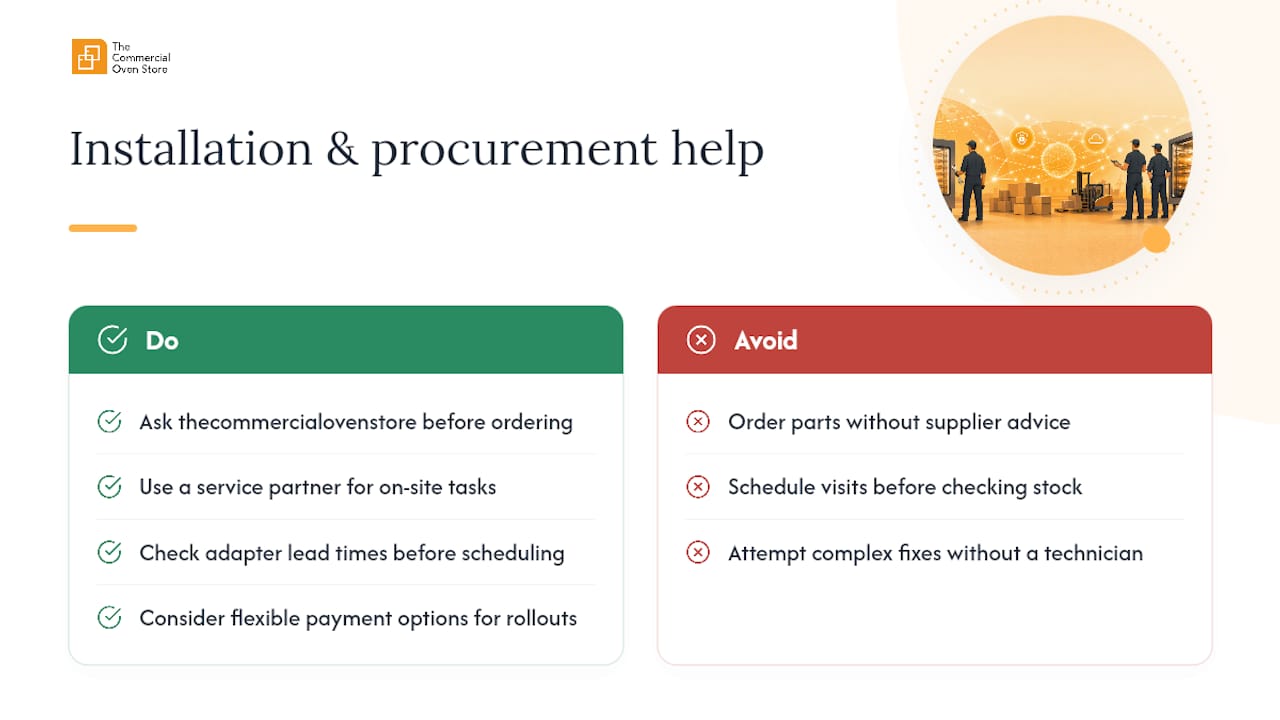
Thecommercialovenstore supplies RATIONAL equipment and original RATIONAL accessories, and the team can advise on which firmware sticks or Wi-Fi adapters a given installation needs before you order the wrong part.
Some installation scenarios genuinely need a service partner on-site: fitting a Wi-Fi adapter to an older SelfCookingCenter, for instance, or recovering a unit that’s stalled mid-firmware-update. Lead times for adapter parts vary by model and stock, so it’s worth checking availability before scheduling the visit rather than after.
Flexible payment options may be available to help spread the cost of new ovens or accessories. That’s often the more practical route for a multi-site rollout where several units need replacing or upgrading around the same time as the connectivity work.
A practical view on rolling this out across multiple sites
Pilot one site before touching the rest of the estate. Confirm the firmware update process, the network policy, and the firewall rule change all work cleanly on a single kitchen before assuming the same steps will run smoothly everywhere else. VLAN setups in particular vary more between sites than people expect, and what worked at head office doesn’t always translate to a satellite kitchen on a different network segment.
Schedule firmware updates outside service hours, always, and get IT involved before the visit rather than during it. Keep a simple record for every unit: firmware version, serial number, and network configuration. That record is what turns the second site’s rollout into a repeat of a known process rather than another round of troubleshooting from scratch.
— Simon
Get help sourcing and installing your RATIONAL equipment
Suppliers offering RATIONAL units and original accessories together, with advice on needed parts, can simplify the procurement and installation process.
Whether you’re replacing an ageing SelfCookingCenter, adding an iCombi Pro to a growing kitchen, or fitting out a new site from scratch, getting the hardware and the connectivity sorted together avoids the gap where equipment arrives before anyone’s checked whether it will actually connect. For kitchens weighing this up alongside wider foodservice workflow planning, it’s worth treating the network setup as part of the procurement decision, not an afterthought once the oven’s already installed.
Flexible payment through iwocaPay means a new oven or set of accessories doesn’t have to be paid for in one lump sum. If you’re planning a rollout across more than one kitchen, get in touch with the team to talk through equipment, adapters, and coordinated installation support before you order anything.
Sources
- Connecting cooking systems to the RATIONAL app – here’s how
- ConnectedCooking iCombi iVario iHexagon (RATIONAL PDF)
FAQ
Do I need to install any software for ConnectedCooking?
No. ConnectedCooking runs through a web browser or app, so there’s nothing to install on the PC or tablet managing the connection.
Which firewall ports does ConnectedCooking need open?
Port 443 for HTTPS traffic to *.connectedcooking.com, and TCP/UDP port 8883 for device communication. Blocking 8883 is the most common cause of a unit showing offline.
What software version does my RATIONAL unit need?
iCombi Pro needs LM100-16.0.24 or newer, iVario Pro needs LMX-2.6.12 or newer, and SelfCookingCenter needs SCC_WE 07-00-10.5.5 or newer. Anything older simply won’t connect and needs a manual update via an original RATIONAL USB stick first.
Can I connect over Wi-Fi instead of a wired network?
Yes, iCombi Pro supports WLAN as standard, and SelfCookingCenter or VarioCookingCenter units from 2017 onward can take a Wi-Fi adapter. Wired LAN remains the more stable choice for production kitchens.
Where can I buy a RATIONAL oven with connectivity already built in?
Thecommercialovenstore supplies current RATIONAL models including the iCombi Pro range with LAN and WLAN as standard, along with original accessories and financing through iwocaPay.